How To Download And Setup Norton Crypto

One right move can change everything!!!
The best-known antivirus software “Norton” has added a new crypto mining tool to its antivirus software called Norton Crypto.
It is an awesome feature that is designed for mining. This feature allows the customers to mine the popular cryptocurrency “Ethereum.” It is available in almost in all the Norton Device Security software including Norton 360.
So, if you have already installed Norton 360 or any other Norton software on your Windows computer, open the application and just turn on the Norton Crypto feature to start cryptocurrency mining. (Scroll down this page to know how to turn it on.)
*Important Note: The Crypto feature works only when your Windows computer is idle.
Windows 10 Os Minimum Requirements
Before installing and turning on the Norton Crypto feature, check if your Windows computer meets the following requirements:
Operating Systems
- Step 1:Windows 11, Windows 10, Windows 8, Windows 7
Windows 7 with Service Pack (SP1) or later with SHA2
Hardware
- Step 1:Graphics card- Nvidia/AMD cards with minimum 6GB memory
- Step 2:Processor- 1 GHz
- Step 3:RAM- 2 GB
- Step 4:Hard disk space- 300 MB
*Note: The Norton Crypto feature is not compatible with Windows 10 in S mode.
If your Windows computer meets the above requirements, follow the below instructions to activate the Norton Crypto feature on your computer.
Installing And Setting Up Norton Crypto
As said above, the Norton Crypto feature is available in Norton 360. Open the Norton device security product installed on your computer and turn on the Crypto feature.
In case you haven’t installed the Norton 360 or device security software on your computer, install it by following the instructions given below.
Installing Norton 360
- Step 1:Go to the Norton product’s official support page.
- Step 2:When prompted, sign in to your Norton account. (Note: If you haven’t created a Norton account, create it and sign in.)
- Step 3:On the My Norton Portal screen, locate and click on the Download button followed by Agree & Download. Now, the Norton device security file will be downloaded.
- Step 4:Open the downloaded file and run it on your Windows computer.
- Step 5:When prompted, type the product key in the given field and click Continue.
- Step 6:Install the Norton device security software on your computer by following the rest of the instructions displayed on the screen.
Turning on the Norton Crypto feature
- Step 1:On your Windows computer, open the Norton device security software.
- Step 2:Go to the Turn your PC’s idle time to cash section.
- Step 3:Below the section, locate and click the Show me how option.
- Step 4:Now, the product’s License and Service Agreement window will appear on the screen.
- Step 5:Accept the service agreement by clicking the Agree & Get Started button to continue the installation and setup process.

- Step 6:Wait for the ongoing process to complete.
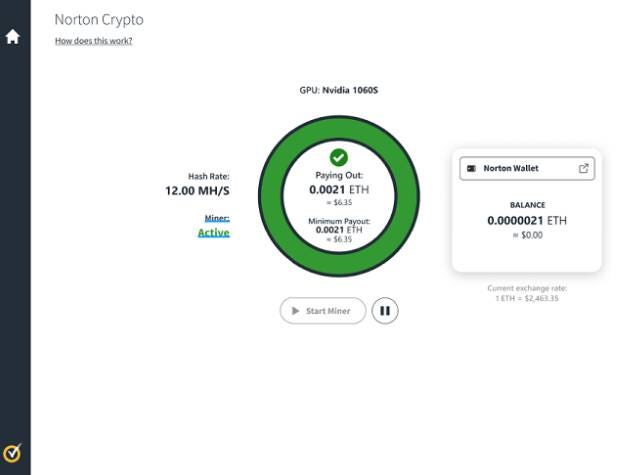
- Step 7:Once it is done, the Norton Crypto dashboard with the Start Mining button and your Norton product details will appear on the screen.
- Step 8:The Norton Crypto feature will automatically start the mining process when your computer becomes idle.
- Step 9:You can also check your current mining status, total earnings currently accumulated in your wallet, and your GPU Click Heremodel name in the opened dashboard.

Transferring your cryptocurrency earnings from Crypto Wallet to an account
- Step 1:Locate and click on the Norton Wallet button in the Crypto dashboard.
- Step 2:If prompted, sign in to your Norton account.
- Step 3:Go to the Wallet tab.
- Step 4:From the given drop-down menu, select the ETH option.
- Step 5:Click the Withdraw button to initiate the transfer process.
- Step 6:Now, if prompted, sign in to your Coinbase account; sign in to finish the transfer process.
Continue reading this page to know more about the Norton features.
Hi! I’m ABISHEK, an Tech Supporter For 5-years in Top MNC Company. Here l will Provide expert step-by-step Troubleshooting (solving) Methods


Comments
Post a Comment